
Google Docs is a free, Web-based word processor, spreadsheet, presentation, and form application offered by Google. It allows users to create and edit documents online while collaborating in real-time with other users.
Some advantages to Google Docs over Microsoft Office:
-Multiple users can collaborate on a single draft seamlessly.
-Control over access to documents by invitation.
-Documents are automatically saved, preventing the loss of your work.
Find Out More:
An overview:
Now click HERE for a tour. Be sure to use the arrows in the top right corner to advance, before finally clicking "Start Now".
Try it Out!
After clicking on the "start now" button, you will be asked to log in. Use:
Email: cpsd3991511@gmail.com
Password: mmscl1511
Create a new document (nothing too fancy, just a sentence or two with your name on it). After creating your document and saving it, send an invitation for me to collaborate on it. This is done in “Docs Home” by checking off the box that has your document and then pressing the “Share” button on the menu bar. My email is: nicktanzi@gmail.com
Go back to the blog you created in exercise #3 and create a blog post about your experience with Google Docs. Be sure to visit the staff page to submit this exercise as described in exercise #1. Don't forget to add a link to your blog posting. Read below for more information.
_____________________________________________________
Recording Progress:
Recording progress on the staff page is as easy as cut-n-paste.
First you'll need to sign up. This will be covered in the directions for activity #1.
For the first two activities, just check off the appropriate check box as discussed in "Sign up for MMSCL 2.0". Once you start recording your discoveries through your own blog (activity #3), you will need to check-off the item and enter the permanent link to the individual blog post that covers the exercise or "thing."
Depending upon the Blogger template that you selected, the "permanent link" for each individual post can be found either through the post’s title or through a link in the posts footer area the contains the date.
To record progress for an individual item on the Staff Page:
- Log in to your blogger.com account that you created in activity #3.
- Click on the permanent link for the individual post.
Example:
Here is where you would find the perma link for this sample blog post: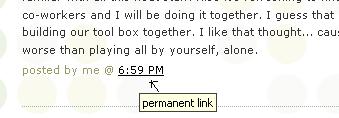
Click on this link to see actual post. - Select the "permanent link" url from the address bar at the top of your browser and right click. Select Copy.
- Follow the instructions from item #1: Sign up for MMSCL 2.0.
- Right click on the address line for the item and select Paste.
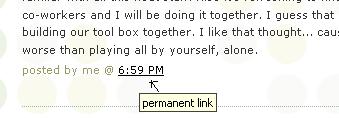
See, it's as easy and copy-n-paste!
Your staff information page should now show a light grey "OK" image. After your activity has been reviewed and approved, the "OK" image will turn purple.


3 comments:
Goolge Docs is awesome. I wish i knew about it in high school, group assignments would have been cake.
This must be a breeze for students when collaborating on a report. It's fascinating, really...
Lets try this again and see if I get it. This is a great website. Wish it was around when my kids were in school.
Post a Comment