Thursday, January 15, 2009

#16 Craigslist: A Guide to Online Classifieds


Craigslist is an free online listing of local classified advertisements including job postings, items for sale, garage sales and other topics you would typically find in your local newspaper.

Each geographic area has a separate Craigslist site. Long Island is defined as our geographic area, but you can browse other areas. A person who is willing to travel for a job might be interested in viewing the Jobs section of the New York City Craigslist or a recent graduate going to college in South Carolina might want to view the apartments available there.


Find Out More:

Craigslist Fact Sheet

Craigslist Personal Safety Tips


Try It Out!

You have two options for this exercise:

(1) Find a posting that sounds interesting to you and describe it on your blog along with a link to the original posting on Craigslist.

OR

(2) Write up a posting for something you would like to sell or advertise on Craigslist. Post it on Craigslist if you are comfortable and include a link to the listing on your blog or just post it to your blog.


Be sure to visit the staff page to submit this exercise as described in exercise #1. Don't forget to add a link to your blog posting.

_____________________________________________________

Recording Progress:


Recording progress on the staff page is as easy as cut-n-paste.

First you'll need to sign up. This will be covered in the directions for activity #1.

For the first two activities, just check off the appropriate check box as discussed in "Sign up for MMSCL 2.0". Once you start recording your discoveries through your own blog (activity #3), you will need to check-off the item and enter the permanent link to the individual blog post that covers the exercise or "thing."

Depending upon the Blogger template that you selected, the "permanent link" for each individual post can be found either through the post’s title or through a link in the posts footer area the contains the date.

To record progress for an individual item on the Staff Page:

  1. Log in to your blogger.com account that you created in activity #3.
  2. Click on the permanent link for the individual post.

    Example:

    Here is where you would find the perma link for this sample blog post:
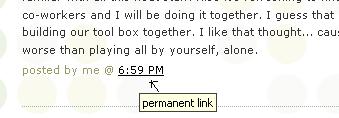

    Click on this link to see actual post.


  3. Select the "permanent link" url from the address bar at the top of your browser and right click. Select Copy.

  4. Follow the instructions from item #1: Sign up for MMSCL 2.0.

  5. Right click on the address line for the item and select Paste.

See, it's as easy and copy-n-paste!

Your staff information page should now show a light grey "OK" image. After your activity has been reviewed and approved, the "OK" image will turn purple.

Wednesday, December 3, 2008

#15 Google Docs: The End of Microsoft Office?


Google Docs is a free, Web-based word processor, spreadsheet, presentation, and form application offered by Google. It allows users to create and edit documents online while collaborating in real-time with other users.

Some advantages to Google Docs over Microsoft Office:

-Multiple users can collaborate on a single draft seamlessly.

-Control over access to documents by invitation.

-Documents are automatically saved, preventing the loss of your work.

Find Out More:

An overview:


Now click HERE for a tour. Be sure to use the arrows in the top right corner to advance, before finally clicking "Start Now".

Try it Out!

After clicking on the "start now" button, you will be asked to log in. Use:

Email: cpsd3991511@gmail.com
Password: mmscl1511

Create a new document (nothing too fancy, just a sentence or two with your name on it). After creating your document and saving it, send an invitation for me to collaborate on it. This is done in “Docs Home” by checking off the box that has your document and then pressing the “Share” button on the menu bar. My email is: nicktanzi@gmail.com


Go back to the blog you created in exercise #3 and create a blog post about your experience with Google Docs. Be sure to visit the staff page to submit this exercise as described in exercise #1. Don't forget to add a link to your blog posting. Read below for more information.
_____________________________________________________

Recording Progress:


Recording progress on the staff page is as easy as cut-n-paste.

First you'll need to sign up. This will be covered in the directions for activity #1.

For the first two activities, just check off the appropriate check box as discussed in "Sign up for MMSCL 2.0". Once you start recording your discoveries through your own blog (activity #3), you will need to check-off the item and enter the permanent link to the individual blog post that covers the exercise or "thing."

Depending upon the Blogger template that you selected, the "permanent link" for each individual post can be found either through the post’s title or through a link in the posts footer area the contains the date.

To record progress for an individual item on the Staff Page:

  1. Log in to your blogger.com account that you created in activity #3.
  2. Click on the permanent link for the individual post.

    Example:

    Here is where you would find the perma link for this sample blog post:


    Click on this link to see actual post.


  3. Select the "permanent link" url from the address bar at the top of your browser and right click. Select Copy.

  4. Follow the instructions from item #1: Sign up for MMSCL 2.0.

  5. Right click on the address line for the item and select Paste.


See, it's as easy and copy-n-paste!

Your staff information page should now show a light grey "OK" image. After your activity has been reviewed and approved, the "OK" image will turn purple.

Thursday, November 20, 2008

#14 What's a Wiki?


A wiki is a collaborative website and authoring tool that allows users to easily add, remove and edit content. Wikipedia, the online open-community encyclopedia, is the largest and perhaps the most well known of these knowledge sharing tools. With the benefits that wikis provide the use and popularity of these tools is exploding.

Some of the benefits that make wikis so attractive are:
  • Anyone (registered or unregistered, if unrestricted) can add, edit or delete content.
  • Tracking tools within wikis allow you to easily keep up on what been changed and by whom.
  • Earlier versions of a page can be viewed and reinstated when needed.
  • Users do not need to know HTML in order to apply styles to text or add and edit content.

As the use of wikis has grown over the last few years, libraries all over the country have begun to use them to collaborate and share knowledge. Among their applications are pathfinder or subject guide wikis, book review wikis, ALA conference wikis and even library best practices wikis.

Find Out More:
Use these resources to learn more about wikis:
  • What is a Wiki? – Library Success wiki presentation. (Be sure to click on the "Wiki Way" sign at the bottom of the page.)

Try It Out!

  1. For this discovery exercise, you are asked to take a look at some library wikis and blog about your finding. Here’s a few examples to get you started:

    • PALS Wiki - The PALS (Partnership of Automated Libraries in Suffolk) team at SCLS, led by Emily Clasper, has created a wiki to help member libraries learn and discuss topics related to automation. Training manuals for Millennium, features of the new OPAC and current updates on outstanding issues are just a few of the offerings available on this wiki.


  2. Go back to the blog you created in exercise #3 and create a blog post about your experience. What did you find interesting? What types of applications within libraries might work well with a wiki? How could a wiki help staff or patrons at our library?
Be sure to visit the staff page to submit this exercise as described in exercise #1. Don't forget to add a link to your blog posting. Read below for more information.
_____________________________________________________

Recording Progress:


Recording progress on the staff page is as easy as cut-n-paste.

First you'll need to sign up. This will be covered in the directions for activity #1.

For the first two activities, just check off the appropriate check box as discussed in "Sign up for MMSCL 2.0". Once you start recording your discoveries through your own blog (activity #3), you will need to check-off the item and enter the permanent link to the individual blog post that covers the exercise or "thing."

Depending upon the Blogger template that you selected, the "permanent link" for each individual post can be found either through the post’s title or through a link in the posts footer area the contains the date.

To record progress for an individual item on the Staff Page:

  1. Log in to your blogger.com account that you created in activity #3.
  2. Click on the permanent link for the individual post.

    Example:

    Here is where you would find the perma link for this sample blog post:


    Click on this link to see actual post.


  3. Select the "permanent link" url from the address bar at the top of your browser and right click. Select Copy.

  4. Follow the instructions from item #1: Sign up for MMSCL 2.0.

  5. Right click on the address line for the item and select Paste.


See, it's as easy and copy-n-paste!

Your staff information page should now show a light grey "OK" image. After your activity has been reviewed and approved, the "OK" image will turn purple.

Wednesday, November 19, 2008

#13 Finding new feeds


Now that you have a newsreader (your RSS Reader account), you can begin adding other newsfeeds that interest you. There are several ways you can locate newsfeeds:


1. When visiting your favorite websites -- look for the bright orange RSS icon that indicates the website provides feeds. Often a feed icon will be displayed somewhere in the navigation bar of the site.

2. Use Blogline's Search tool - Bloglines recently expanded search tool lets you search for news feeds in addition to posts, citations and the web. Use the Search for Feeds option to locate RSS feeds you might be interested in.

3. Other Search tools that can help you find feeds:

  • Technorati - Technorati is a popular blog finding tool that lets you search for blogs. Since RSS feeds are inherent to all blogging tools, Technorati Blog Search can help you find RSS feeds for topic specific blogs you may be interested in. Additonal Resource: Technorati Tutorial on finding and adding your blog

  • Syndic8.com - Syndic8 is an open directory of RSS feeds that contains thousands of RSS feeds that users have submitted.

Try It Out!
  1. Explore some of the search tools noted above that can help you locate some news feeds.

  2. Go back to the blog you created in exercise #3 and create a blog post about your experience. Don't know what to blog about? Here some questions to think about ...
    Which method of finding feeds did you find easiest to use? Which Search tool was the easiest for you? Which was more confusing? What kind of useful feeds did you find in your travels? Or what kind of unusual ones did you find? What other tools or ways did you find to locate newsfeeds?
  3. Be sure to visit the staff page to submit this exercise as described in exercise #1. Don't forget to add a link to your blog posting. Read below for more information.
_____________________________________________________

Recording Progress:


Recording progress on the staff page is as easy as cut-n-paste.

First you'll need to sign up. This will be covered in the directions for activity #1.

For the first two activities, just check off the appropriate check box as discussed in "Sign up for MMSCL 2.0". Once you start recording your discoveries through your own blog (activity #3), you will need to check-off the item and enter the permanent link to the individual blog post that covers the exercise or "thing."

Depending upon the Blogger template that you selected, the "permanent link" for each individual post can be found either through the post’s title or through a link in the posts footer area the contains the date.

To record progress for an individual item on the Staff Page:

  1. Log in to your blogger.com account that you created in activity #3.
  2. Click on the permanent link for the individual post.

    Example:

    Here is where you would find the perma link for this sample blog post:


    Click on this link to see actual post.


  3. Select the "permanent link" url from the address bar at the top of your browser and right click. Select Copy.

  4. Follow the instructions from item #1: Sign up for MMSCL 2.0.

  5. Right click on the address line for the item and select Paste.


See, it's as easy and copy-n-paste!

Your staff information page should now show a light grey "OK" image. After your activity has been reviewed and approved, the "OK" image will turn purple.

#12 Discovering feeds on our catalog and website


Now that you've had a chance to explore RSS and feeds we're going to take a look at how our new catalog and website uses feeds to send information out to our patrons.

Once you're familiar with it, you'll start to see that bright orange RSS logo popping up all over the internet and our catalog is no exception.

The catalog incorporates some popular RSS feeds all in one place for our patrons to easily browse without having to sign up for an account with a feed reader service such as Google Reader or Bloglines. The drawback of this ease of use is the inability to adjust which feeds they read.

Our website also has RSS feeds within the site that allow a patrons to subscribe to popular content such as upcoming programs, new books and new DVDs using their own feed reader (Google Reader, Bloglines, etc.). In this manner all of the frequently updated content on our website is automatically being pushed to the patron without the patron having to search our site for the information.

Try It Out!
  1. Go to the catalog and review our feeds.
  2. Now spend some time browsing our new website. Can you find the feeds? What other interesting content can you find on our new site?
  3. Using the account you set up in the previous exercise, subscribe to a feed you found.
  4. Go back to your blog and write a blog posting describing your experiences using RSS feeds in these two different manners. How do you think patrons will respond to these technologies? How can the catalog and website RSS feeds help us serve the public more efficiently?
  5. Be sure to visit the staff page to submit this exercise as described in exercise #1. Don't forget to add a link to your blog posting. Read below for more information.
_____________________________________________________

Recording Progress:


Recording progress on the staff page is as easy as cut-n-paste.

First you'll need to sign up. This will be covered in the directions for activity #1.

For the first two activities, just check off the appropriate check box as discussed in "Sign up for MMSCL 2.0". Once you start recording your discoveries through your own blog (activity #3), you will need to check-off the item and enter the permanent link to the individual blog post that covers the exercise or "thing."

Depending upon the Blogger template that you selected, the "permanent link" for each individual post can be found either through the post’s title or through a link in the posts footer area the contains the date.

To record progress for an individual item on the Staff Page:

  1. Log in to your blogger.com account that you created in activity #3.
  2. Click on the permanent link for the individual post.

    Example:

    Here is where you would find the perma link for this sample blog post:


    Click on this link to see actual post.


  3. Select the "permanent link" url from the address bar at the top of your browser and right click. Select Copy.

  4. Follow the instructions from item #1: Sign up for MMSCL 2.0.

  5. Right click on the address line for the item and select Paste.


See, it's as easy and copy-n-paste!

Your staff information page should now show a light grey "OK" image. After your activity has been reviewed and approved, the "OK" image will turn purple.

Tuesday, November 18, 2008

#11 What are RSS feed readers?

RSS feed readers (also know as aggregators) allow you to read blog entries, site updates and news items in one place, without having to check all of the websites to see if there's anything new. With a feed reader, you subscribe to each site's feed - as they update, the entries are automatically pulled into your feed reader, creating a personalized online news magazine for you. You can subscribe to all sorts of content - news, weather, blogs, flickr and youtube posts, book, movie and music releases and more.

The two most popular feed readers are Google Reader and Bloglines.

Subscribing to content is very easy - all feed readers allow you to enter URLs or keywords to search for sites, or when you are at a site that you'd like to follow, just look for the RSS symbol:

Clicking on that symbol (or sometimes just on a link that says "SUBSCRIBE" or "FOLLOW") will allow you to add the feed to your news reader.


Find Out More:

Top 10 Windows RSS Feed Readers and News Aggregators

Wikipedia Entry for Aggregator

Yahoo! explains their many feeds


Try It Out!

  • Take a look at MMSCLTeens' Google Reader account to get an idea of how much information you can subscribe to and read.
    • Go to http://reader.google.com/
    • username = mmsclteens
    • password = teens11967
  • Create your own Google Reader or Bloglines account. Subscribe to some feeds of interest.
  • Here are some local feeds that you can subscribe to:
    • Fantastic Mastic Beach: http://masticbeach.blogspot.com/
    • Mastastico: http://mastastico.blogspot.com/
    • Mastic/Shirley: http://masticshirley.blogspot.com/
    • Kenny Bloggins: http://yukeleleblog.blogspot.com/
    • Smith Point Neighborhood News: http://smithpointneighborhoodnews.blogspot.com/
  • Go back to the blog you created in exercise #3 and create a blog post about something that you discovered while reading your feed reader. Include a link to the item. Be sure to visit the staff page to submit this exercise as described in exercise #1. Don't forget to add a link to your blog posting. Read below for more information.
_____________________________________________________

Recording Progress:


Recording progress on the staff page is as easy as cut-n-paste.

First you'll need to sign up. This will be covered in the directions for activity #1.

For the first two activities, just check off the appropriate check box as discussed in "Sign up for MMSCL 2.0". Once you start recording your discoveries through your own blog (activity #3), you will need to check-off the item and enter the permanent link to the individual blog post that covers the exercise or "thing."

Depending upon the Blogger template that you selected, the "permanent link" for each individual post can be found either through the post’s title or through a link in the posts footer area the contains the date.

To record progress for an individual item on the Staff Page:

  1. Log in to your blogger.com account that you created in activity #3.
  2. Click on the permanent link for the individual post.

    Example:

    Here is where you would find the perma link for this sample blog post:


    Click on this link to see actual post.


  3. Select the "permanent link" url from the address bar at the top of your browser and right click. Select Copy.

  4. Follow the instructions from item #1: Sign up for MMSCL 2.0.

  5. Right click on the address line for the item and select Paste.


See, it's as easy and copy-n-paste!

Your staff information page should now show a light grey "OK" image. After your activity has been reviewed and approved, the "OK" image will turn purple.

#10 Surfing Suffolk Wave


Downloading and enjoying Audiobooks and Ebooks is super-easy with Suffolk Wave. With your MMSCL card and a computer, you have access to thousands of books online at any time, plus music and video.

Audiobooks can be listened to on your computer, your mp3 player, or burned to a CD and played in a CD player.

Ebooks can be read on your computer screen or downloaded to devices such as the Palm PDA, the Blackberry, the Sony eBook Reader, or Pocket PCs.


Find Out More:

Visit Suffolk Wave and get started by going through their guided tour.


Try It Out!

Once you've familiarized yourself with the service, browse through the many titles available to find one you would like to read, or listen to. As you learned in the guided tour, you will need to download the Overdrive Media Console for audiobooks, videos and music; and either Adobe Reader or Mobipocket Reader for ebooks.

The first time you borrow a title, you will be prompted to download the correct software as well. If you wish to then transfer your title to an mp3 player, ereader or disc, you will need to follow further procedures.

Enjoy your downloaded titles, then go back to the blog you created in exercise #3 and create a blog post about what you downloaded from Suffolk Wave and what you thought about the process.

Be sure to visit the staff page to submit this exercise as described in exercise #1. Don't forget to add a link to your blog posting. Read below for more information.


_____________________________________________________

Recording Progress:


Recording progress on the staff page is as easy as cut-n-paste.

First you'll need to sign up. This will be covered in the directions for activity #1.

For the first two activities, just check off the appropriate check box as discussed in "Sign up for MMSCL 2.0". Once you start recording your discoveries through your own blog (activity #3), you will need to check-off the item and enter the permanent link to the individual blog post that covers the exercise or "thing."

Depending upon the Blogger template that you selected, the "permanent link" for each individual post can be found either through the post’s title or through a link in the posts footer area the contains the date.

To record progress for an individual item on the Staff Page:

  1. Log in to your blogger.com account that you created in activity #3.
  2. Click on the permanent link for the individual post.

    Example:

    Here is where you would find the perma link for this sample blog post:


    Click on this link to see actual post.


  3. Select the "permanent link" url from the address bar at the top of your browser and right click. Select Copy.

  4. Follow the instructions from item #1: Sign up for MMSCL 2.0.

  5. Right click on the address line for the item and select Paste.


See, it's as easy and copy-n-paste!

Your staff information page should now show a light grey "OK" image. After your activity has been reviewed and approved, the "OK" image will turn purple.