
A wiki is a collaborative website and authoring tool that allows users to easily add, remove and edit content. Wikipedia, the online open-community encyclopedia, is the largest and perhaps the most well known of these knowledge sharing tools. With the benefits that wikis provide the use and popularity of these tools is exploding.
Some of the benefits that make wikis so attractive are:
- Anyone (registered or unregistered, if unrestricted) can add, edit or delete content.
- Tracking tools within wikis allow you to easily keep up on what been changed and by whom.
- Earlier versions of a page can be viewed and reinstated when needed.
- Users do not need to know HTML in order to apply styles to text or add and edit content.
As the use of wikis has grown over the last few years, libraries all over the country have begun to use them to collaborate and share knowledge. Among their applications are pathfinder or subject guide wikis, book review wikis, ALA conference wikis and even library best practices wikis.
Find Out More:
Use these resources to learn more about wikis:
- What is a Wiki? – Library Success wiki presentation. (Be sure to click on the "Wiki Way" sign at the bottom of the page.)
- Using Wikis to Create Online Communities – a good overview of what a wiki is and how it can be used in libraries.
Try It Out!
- For this discovery exercise, you are asked to take a look at some library wikis and blog about your finding. Here’s a few examples to get you started:
- PALS Wiki - The PALS (Partnership of Automated Libraries in Suffolk) team at SCLS, led by Emily Clasper, has created a wiki to help member libraries learn and discuss topics related to automation. Training manuals for Millennium, features of the new OPAC and current updates on outstanding issues are just a few of the offerings available on this wiki.
- SJCPL Subject Guides – a pathfinder wiki developed by the St. Joseph County Public Library system
- Book Lovers Wiki - developed by the Princeton Public Library
- Library Success: A best practices wiki
- Other library wiki examples
- PALS Wiki - The PALS (Partnership of Automated Libraries in Suffolk) team at SCLS, led by Emily Clasper, has created a wiki to help member libraries learn and discuss topics related to automation. Training manuals for Millennium, features of the new OPAC and current updates on outstanding issues are just a few of the offerings available on this wiki.
- Go back to the blog you created in exercise #3 and create a blog post about your experience. What did you find interesting? What types of applications within libraries might work well with a wiki? How could a wiki help staff or patrons at our library?
_____________________________________________________
Recording Progress:
Recording progress on the staff page is as easy as cut-n-paste.
First you'll need to sign up. This will be covered in the directions for activity #1.
For the first two activities, just check off the appropriate check box as discussed in "Sign up for MMSCL 2.0". Once you start recording your discoveries through your own blog (activity #3), you will need to check-off the item and enter the permanent link to the individual blog post that covers the exercise or "thing."
Depending upon the Blogger template that you selected, the "permanent link" for each individual post can be found either through the post’s title or through a link in the posts footer area the contains the date.
To record progress for an individual item on the Staff Page:
- Log in to your blogger.com account that you created in activity #3.
- Click on the permanent link for the individual post.
Example:
Here is where you would find the perma link for this sample blog post: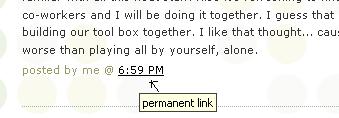
Click on this link to see actual post. - Select the "permanent link" url from the address bar at the top of your browser and right click. Select Copy.
- Follow the instructions from item #1: Sign up for MMSCL 2.0.
- Right click on the address line for the item and select Paste.
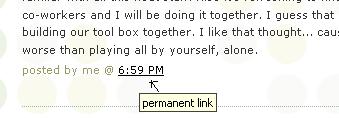
See, it's as easy and copy-n-paste!
Your staff information page should now show a light grey "OK" image. After your activity has been reviewed and approved, the "OK" image will turn purple.


No comments:
Post a Comment