
Downloading and enjoying Audiobooks and Ebooks is super-easy with Suffolk Wave. With your MMSCL card and a computer, you have access to thousands of books online at any time, plus music and video.
Audiobooks can be listened to on your computer, your mp3 player, or burned to a CD and played in a CD player.
Ebooks can be read on your computer screen or downloaded to devices such as the Palm PDA, the Blackberry, the Sony eBook Reader, or Pocket PCs.
Find Out More:
Visit Suffolk Wave and get started by going through their guided tour.
Try It Out!
Once you've familiarized yourself with the service, browse through the many titles available to find one you would like to read, or listen to. As you learned in the guided tour, you will need to download the Overdrive Media Console for audiobooks, videos and music; and either Adobe Reader or Mobipocket Reader for ebooks.
The first time you borrow a title, you will be prompted to download the correct software as well. If you wish to then transfer your title to an mp3 player, ereader or disc, you will need to follow further procedures.
Enjoy your downloaded titles, then go back to the blog you created in exercise #3 and create a blog post about what you downloaded from Suffolk Wave and what you thought about the process.
Be sure to visit the staff page to submit this exercise as described in exercise #1. Don't forget to add a link to your blog posting. Read below for more information.
_____________________________________________________
Recording Progress:
Recording progress on the staff page is as easy as cut-n-paste.
First you'll need to sign up. This will be covered in the directions for activity #1.
For the first two activities, just check off the appropriate check box as discussed in "Sign up for MMSCL 2.0". Once you start recording your discoveries through your own blog (activity #3), you will need to check-off the item and enter the permanent link to the individual blog post that covers the exercise or "thing."
Depending upon the Blogger template that you selected, the "permanent link" for each individual post can be found either through the post’s title or through a link in the posts footer area the contains the date.
To record progress for an individual item on the Staff Page:
- Log in to your blogger.com account that you created in activity #3.
- Click on the permanent link for the individual post.
Example:
Here is where you would find the perma link for this sample blog post: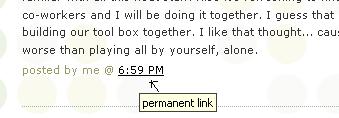
Click on this link to see actual post. - Select the "permanent link" url from the address bar at the top of your browser and right click. Select Copy.
- Follow the instructions from item #1: Sign up for MMSCL 2.0.
- Right click on the address line for the item and select Paste.
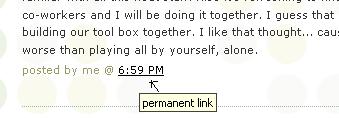
See, it's as easy and copy-n-paste!
Your staff information page should now show a light grey "OK" image. After your activity has been reviewed and approved, the "OK" image will turn purple.


No comments:
Post a Comment