
Now that you have a newsreader (your RSS Reader account), you can begin adding other newsfeeds that interest you. There are several ways you can locate newsfeeds:
1. When visiting your favorite websites -- look for the bright orange RSS icon that indicates the website provides feeds. Often a feed icon will be displayed somewhere in the navigation bar of the site.
2. Use Blogline's Search tool - Bloglines recently expanded search tool lets you search for news feeds in addition to posts, citations and the web. Use the Search for Feeds option to locate RSS feeds you might be interested in.
3. Other Search tools that can help you find feeds:
- Technorati - Technorati is a popular blog finding tool that lets you search for blogs. Since RSS feeds are inherent to all blogging tools, Technorati Blog Search can help you find RSS feeds for topic specific blogs you may be interested in. Additonal Resource: Technorati Tutorial on finding and adding your blog
- Search for new feeds on Google Reader. (You'll need to login with your new google reader account). Check out the Google Reader help page for more information.
- Syndic8.com - Syndic8 is an open directory of RSS feeds that contains thousands of RSS feeds that users have submitted.
Try It Out!
- Explore some of the search tools noted above that can help you locate some news feeds.
- Go back to the blog you created in exercise #3 and create a blog post about your experience. Don't know what to blog about? Here some questions to think about ...
Which method of finding feeds did you find easiest to use? Which Search tool was the easiest for you? Which was more confusing? What kind of useful feeds did you find in your travels? Or what kind of unusual ones did you find? What other tools or ways did you find to locate newsfeeds?
- Be sure to visit the staff page to submit this exercise as described in exercise #1. Don't forget to add a link to your blog posting. Read below for more information.
Recording Progress:
Recording progress on the staff page is as easy as cut-n-paste.
First you'll need to sign up. This will be covered in the directions for activity #1.
For the first two activities, just check off the appropriate check box as discussed in "Sign up for MMSCL 2.0". Once you start recording your discoveries through your own blog (activity #3), you will need to check-off the item and enter the permanent link to the individual blog post that covers the exercise or "thing."
Depending upon the Blogger template that you selected, the "permanent link" for each individual post can be found either through the post’s title or through a link in the posts footer area the contains the date.
To record progress for an individual item on the Staff Page:
- Log in to your blogger.com account that you created in activity #3.
- Click on the permanent link for the individual post.
Example:
Here is where you would find the perma link for this sample blog post: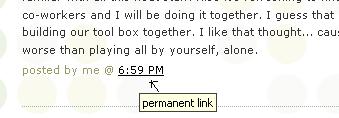
Click on this link to see actual post. - Select the "permanent link" url from the address bar at the top of your browser and right click. Select Copy.
- Follow the instructions from item #1: Sign up for MMSCL 2.0.
- Right click on the address line for the item and select Paste.
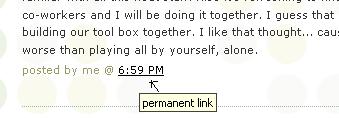
See, it's as easy and copy-n-paste!
Your staff information page should now show a light grey "OK" image. After your activity has been reviewed and approved, the "OK" image will turn purple.



No comments:
Post a Comment