Thursday, November 20, 2008

#14 What's a Wiki?


A wiki is a collaborative website and authoring tool that allows users to easily add, remove and edit content. Wikipedia, the online open-community encyclopedia, is the largest and perhaps the most well known of these knowledge sharing tools. With the benefits that wikis provide the use and popularity of these tools is exploding.

Some of the benefits that make wikis so attractive are:
  • Anyone (registered or unregistered, if unrestricted) can add, edit or delete content.
  • Tracking tools within wikis allow you to easily keep up on what been changed and by whom.
  • Earlier versions of a page can be viewed and reinstated when needed.
  • Users do not need to know HTML in order to apply styles to text or add and edit content.

As the use of wikis has grown over the last few years, libraries all over the country have begun to use them to collaborate and share knowledge. Among their applications are pathfinder or subject guide wikis, book review wikis, ALA conference wikis and even library best practices wikis.

Find Out More:
Use these resources to learn more about wikis:
  • What is a Wiki? – Library Success wiki presentation. (Be sure to click on the "Wiki Way" sign at the bottom of the page.)

Try It Out!

  1. For this discovery exercise, you are asked to take a look at some library wikis and blog about your finding. Here’s a few examples to get you started:

    • PALS Wiki - The PALS (Partnership of Automated Libraries in Suffolk) team at SCLS, led by Emily Clasper, has created a wiki to help member libraries learn and discuss topics related to automation. Training manuals for Millennium, features of the new OPAC and current updates on outstanding issues are just a few of the offerings available on this wiki.


  2. Go back to the blog you created in exercise #3 and create a blog post about your experience. What did you find interesting? What types of applications within libraries might work well with a wiki? How could a wiki help staff or patrons at our library?
Be sure to visit the staff page to submit this exercise as described in exercise #1. Don't forget to add a link to your blog posting. Read below for more information.
_____________________________________________________

Recording Progress:


Recording progress on the staff page is as easy as cut-n-paste.

First you'll need to sign up. This will be covered in the directions for activity #1.

For the first two activities, just check off the appropriate check box as discussed in "Sign up for MMSCL 2.0". Once you start recording your discoveries through your own blog (activity #3), you will need to check-off the item and enter the permanent link to the individual blog post that covers the exercise or "thing."

Depending upon the Blogger template that you selected, the "permanent link" for each individual post can be found either through the post’s title or through a link in the posts footer area the contains the date.

To record progress for an individual item on the Staff Page:

  1. Log in to your blogger.com account that you created in activity #3.
  2. Click on the permanent link for the individual post.

    Example:

    Here is where you would find the perma link for this sample blog post:
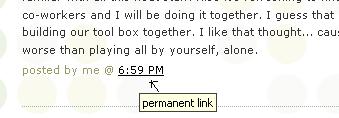

    Click on this link to see actual post.


  3. Select the "permanent link" url from the address bar at the top of your browser and right click. Select Copy.

  4. Follow the instructions from item #1: Sign up for MMSCL 2.0.

  5. Right click on the address line for the item and select Paste.
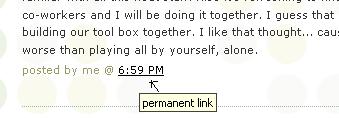

See, it's as easy and copy-n-paste!

Your staff information page should now show a light grey "OK" image. After your activity has been reviewed and approved, the "OK" image will turn purple.

Wednesday, November 19, 2008

#13 Finding new feeds


Now that you have a newsreader (your RSS Reader account), you can begin adding other newsfeeds that interest you. There are several ways you can locate newsfeeds:


1. When visiting your favorite websites -- look for the bright orange RSS icon that indicates the website provides feeds. Often a feed icon will be displayed somewhere in the navigation bar of the site.

2. Use Blogline's Search tool - Bloglines recently expanded search tool lets you search for news feeds in addition to posts, citations and the web. Use the Search for Feeds option to locate RSS feeds you might be interested in.

3. Other Search tools that can help you find feeds:

  • Technorati - Technorati is a popular blog finding tool that lets you search for blogs. Since RSS feeds are inherent to all blogging tools, Technorati Blog Search can help you find RSS feeds for topic specific blogs you may be interested in. Additonal Resource: Technorati Tutorial on finding and adding your blog

  • Syndic8.com - Syndic8 is an open directory of RSS feeds that contains thousands of RSS feeds that users have submitted.

Try It Out!
  1. Explore some of the search tools noted above that can help you locate some news feeds.

  2. Go back to the blog you created in exercise #3 and create a blog post about your experience. Don't know what to blog about? Here some questions to think about ...
    Which method of finding feeds did you find easiest to use? Which Search tool was the easiest for you? Which was more confusing? What kind of useful feeds did you find in your travels? Or what kind of unusual ones did you find? What other tools or ways did you find to locate newsfeeds?
  3. Be sure to visit the staff page to submit this exercise as described in exercise #1. Don't forget to add a link to your blog posting. Read below for more information.
_____________________________________________________

Recording Progress:


Recording progress on the staff page is as easy as cut-n-paste.

First you'll need to sign up. This will be covered in the directions for activity #1.

For the first two activities, just check off the appropriate check box as discussed in "Sign up for MMSCL 2.0". Once you start recording your discoveries through your own blog (activity #3), you will need to check-off the item and enter the permanent link to the individual blog post that covers the exercise or "thing."

Depending upon the Blogger template that you selected, the "permanent link" for each individual post can be found either through the post’s title or through a link in the posts footer area the contains the date.

To record progress for an individual item on the Staff Page:

  1. Log in to your blogger.com account that you created in activity #3.
  2. Click on the permanent link for the individual post.

    Example:

    Here is where you would find the perma link for this sample blog post:


    Click on this link to see actual post.


  3. Select the "permanent link" url from the address bar at the top of your browser and right click. Select Copy.

  4. Follow the instructions from item #1: Sign up for MMSCL 2.0.

  5. Right click on the address line for the item and select Paste.


See, it's as easy and copy-n-paste!

Your staff information page should now show a light grey "OK" image. After your activity has been reviewed and approved, the "OK" image will turn purple.

#12 Discovering feeds on our catalog and website


Now that you've had a chance to explore RSS and feeds we're going to take a look at how our new catalog and website uses feeds to send information out to our patrons.

Once you're familiar with it, you'll start to see that bright orange RSS logo popping up all over the internet and our catalog is no exception.

The catalog incorporates some popular RSS feeds all in one place for our patrons to easily browse without having to sign up for an account with a feed reader service such as Google Reader or Bloglines. The drawback of this ease of use is the inability to adjust which feeds they read.

Our website also has RSS feeds within the site that allow a patrons to subscribe to popular content such as upcoming programs, new books and new DVDs using their own feed reader (Google Reader, Bloglines, etc.). In this manner all of the frequently updated content on our website is automatically being pushed to the patron without the patron having to search our site for the information.

Try It Out!
  1. Go to the catalog and review our feeds.
  2. Now spend some time browsing our new website. Can you find the feeds? What other interesting content can you find on our new site?
  3. Using the account you set up in the previous exercise, subscribe to a feed you found.
  4. Go back to your blog and write a blog posting describing your experiences using RSS feeds in these two different manners. How do you think patrons will respond to these technologies? How can the catalog and website RSS feeds help us serve the public more efficiently?
  5. Be sure to visit the staff page to submit this exercise as described in exercise #1. Don't forget to add a link to your blog posting. Read below for more information.
_____________________________________________________

Recording Progress:


Recording progress on the staff page is as easy as cut-n-paste.

First you'll need to sign up. This will be covered in the directions for activity #1.

For the first two activities, just check off the appropriate check box as discussed in "Sign up for MMSCL 2.0". Once you start recording your discoveries through your own blog (activity #3), you will need to check-off the item and enter the permanent link to the individual blog post that covers the exercise or "thing."

Depending upon the Blogger template that you selected, the "permanent link" for each individual post can be found either through the post’s title or through a link in the posts footer area the contains the date.

To record progress for an individual item on the Staff Page:

  1. Log in to your blogger.com account that you created in activity #3.
  2. Click on the permanent link for the individual post.

    Example:

    Here is where you would find the perma link for this sample blog post:


    Click on this link to see actual post.


  3. Select the "permanent link" url from the address bar at the top of your browser and right click. Select Copy.

  4. Follow the instructions from item #1: Sign up for MMSCL 2.0.

  5. Right click on the address line for the item and select Paste.


See, it's as easy and copy-n-paste!

Your staff information page should now show a light grey "OK" image. After your activity has been reviewed and approved, the "OK" image will turn purple.

Tuesday, November 18, 2008

#11 What are RSS feed readers?

RSS feed readers (also know as aggregators) allow you to read blog entries, site updates and news items in one place, without having to check all of the websites to see if there's anything new. With a feed reader, you subscribe to each site's feed - as they update, the entries are automatically pulled into your feed reader, creating a personalized online news magazine for you. You can subscribe to all sorts of content - news, weather, blogs, flickr and youtube posts, book, movie and music releases and more.

The two most popular feed readers are Google Reader and Bloglines.

Subscribing to content is very easy - all feed readers allow you to enter URLs or keywords to search for sites, or when you are at a site that you'd like to follow, just look for the RSS symbol:

Clicking on that symbol (or sometimes just on a link that says "SUBSCRIBE" or "FOLLOW") will allow you to add the feed to your news reader.


Find Out More:

Top 10 Windows RSS Feed Readers and News Aggregators

Wikipedia Entry for Aggregator

Yahoo! explains their many feeds


Try It Out!

  • Take a look at MMSCLTeens' Google Reader account to get an idea of how much information you can subscribe to and read.
    • Go to http://reader.google.com/
    • username = mmsclteens
    • password = teens11967
  • Create your own Google Reader or Bloglines account. Subscribe to some feeds of interest.
  • Here are some local feeds that you can subscribe to:
    • Fantastic Mastic Beach: http://masticbeach.blogspot.com/
    • Mastastico: http://mastastico.blogspot.com/
    • Mastic/Shirley: http://masticshirley.blogspot.com/
    • Kenny Bloggins: http://yukeleleblog.blogspot.com/
    • Smith Point Neighborhood News: http://smithpointneighborhoodnews.blogspot.com/
  • Go back to the blog you created in exercise #3 and create a blog post about something that you discovered while reading your feed reader. Include a link to the item. Be sure to visit the staff page to submit this exercise as described in exercise #1. Don't forget to add a link to your blog posting. Read below for more information.
_____________________________________________________

Recording Progress:


Recording progress on the staff page is as easy as cut-n-paste.

First you'll need to sign up. This will be covered in the directions for activity #1.

For the first two activities, just check off the appropriate check box as discussed in "Sign up for MMSCL 2.0". Once you start recording your discoveries through your own blog (activity #3), you will need to check-off the item and enter the permanent link to the individual blog post that covers the exercise or "thing."

Depending upon the Blogger template that you selected, the "permanent link" for each individual post can be found either through the post’s title or through a link in the posts footer area the contains the date.

To record progress for an individual item on the Staff Page:

  1. Log in to your blogger.com account that you created in activity #3.
  2. Click on the permanent link for the individual post.

    Example:

    Here is where you would find the perma link for this sample blog post:


    Click on this link to see actual post.


  3. Select the "permanent link" url from the address bar at the top of your browser and right click. Select Copy.

  4. Follow the instructions from item #1: Sign up for MMSCL 2.0.

  5. Right click on the address line for the item and select Paste.


See, it's as easy and copy-n-paste!

Your staff information page should now show a light grey "OK" image. After your activity has been reviewed and approved, the "OK" image will turn purple.

#10 Surfing Suffolk Wave


Downloading and enjoying Audiobooks and Ebooks is super-easy with Suffolk Wave. With your MMSCL card and a computer, you have access to thousands of books online at any time, plus music and video.

Audiobooks can be listened to on your computer, your mp3 player, or burned to a CD and played in a CD player.

Ebooks can be read on your computer screen or downloaded to devices such as the Palm PDA, the Blackberry, the Sony eBook Reader, or Pocket PCs.


Find Out More:

Visit Suffolk Wave and get started by going through their guided tour.


Try It Out!

Once you've familiarized yourself with the service, browse through the many titles available to find one you would like to read, or listen to. As you learned in the guided tour, you will need to download the Overdrive Media Console for audiobooks, videos and music; and either Adobe Reader or Mobipocket Reader for ebooks.

The first time you borrow a title, you will be prompted to download the correct software as well. If you wish to then transfer your title to an mp3 player, ereader or disc, you will need to follow further procedures.

Enjoy your downloaded titles, then go back to the blog you created in exercise #3 and create a blog post about what you downloaded from Suffolk Wave and what you thought about the process.

Be sure to visit the staff page to submit this exercise as described in exercise #1. Don't forget to add a link to your blog posting. Read below for more information.


_____________________________________________________

Recording Progress:


Recording progress on the staff page is as easy as cut-n-paste.

First you'll need to sign up. This will be covered in the directions for activity #1.

For the first two activities, just check off the appropriate check box as discussed in "Sign up for MMSCL 2.0". Once you start recording your discoveries through your own blog (activity #3), you will need to check-off the item and enter the permanent link to the individual blog post that covers the exercise or "thing."

Depending upon the Blogger template that you selected, the "permanent link" for each individual post can be found either through the post’s title or through a link in the posts footer area the contains the date.

To record progress for an individual item on the Staff Page:

  1. Log in to your blogger.com account that you created in activity #3.
  2. Click on the permanent link for the individual post.

    Example:

    Here is where you would find the perma link for this sample blog post:


    Click on this link to see actual post.


  3. Select the "permanent link" url from the address bar at the top of your browser and right click. Select Copy.

  4. Follow the instructions from item #1: Sign up for MMSCL 2.0.

  5. Right click on the address line for the item and select Paste.


See, it's as easy and copy-n-paste!

Your staff information page should now show a light grey "OK" image. After your activity has been reviewed and approved, the "OK" image will turn purple.

Monday, November 17, 2008

#9 Explore Flickr


Flickr is an online photo management and sharing website that has been around since the 90’s. It is a place for social networking through images. Flickr is one of the fastest growing photo sharing sites on the web in part due to its organization tools. A popular feature of this site is the use of keyword tags to create associations and connections between photos and users of the site. In addition to photo sharing, Flickr has now partnered with Picnik, a photo editing program known for its ease of use.

For this exercise, you will need to explore Flickr. Check out the site to learn all about tags, groups, and Picnik. Don’t forget to have some fun too!


Find Out More:


Try It Out!

In this discovery exercise you have 2 options…

  1. Explore Flickr and blog about an interesting image. In your blog, be sure to include a link to the image.

--OR--

  1. Challenge yourself. Create your own Flickr account. It is completely free of charge and is very simple. Use the MMSCL digital camera (available in the Tech Services department) or your own digital camera to capture a few pictures. Upload these images to your Flickr account and tag at least one of your images “MMSCL2.0” and mark it public. Then create a post in your blog describing the photo. Be sure to include the image in your post. Once you have a Flickr account, you have two options for doing this: through Flickr's blogging tool or using Blogger's photo upload feature.

When uploading images, please be aware of Flickr’s community guidelines.


Let’s Go!

Here’s your chance to have some fun. Go explore Flickr. If you’re interested in looking at some other photo hosting sites, check out this list at Wikipedia.

Create a blog posting about your Flickr experience. Be sure to visit the staff page to submit this exercise as described in exercise #1. Don't forget to add a link to your blog posting.

#8 - Find a video on YouTube


Online video hosting sites that allow users to easily share videos on the web have become incredibly popular within the past few years. YouTube, an independent subsidiary of Google Inc. is currently the worldwide leader among these sites.

Everyone can participate in the YouTube community by watching, sharing, and commenting on videos. People can see first-hand accounts of current events, relive their favorite TV moments, find videos about their hobbies and interests, discover new artists and filmmakers, and even uncover the quirky and unusual.

As more people capture special moments on video, YouTube is empowering them to share their experiences, talents, and expertise with the world.

Some of the site's features include:

  • Video embedding: Users can insert a YouTube video into Facebook and MySpace accounts, blogs, or other Web sites where anyone can watch them.
  • Public or private videos: Users can elect to broadcast their videos publicly or share them privately with friends and family upon upload.
  • Subscriptions: Users are able to keep track of their favorite users' new videos.

Do some searching around YouTube yourself and see what the site has to offer. You'll find everything from why I love my library to library dominos, kids being kids, the evolution of dance and Kool-Aid commercials. Of course, like any free site you’ll also find a lot stuff not worth watching too. But that doesn’t mean you shouldn’t explore and see for yourself what the site has too offer. (Try searching for a how-to video like how to knit)

Try It Out!
  1. Explore YouTube & find a video worth adding as an entry in your blog.
  2. Create a blog post about your experience. What did you like or dislike about the site and why did you choose the video that you did? Can you see any features or components of the site that might be interesting if they were applied to library websites?
  3. Be sure to visit the staff page to submit this exercise as described in exercise #1. Don't forget to add a link to your blog posting.


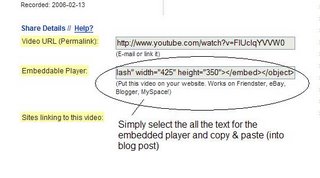
OPTIONAL: Try placing the video inside your blog using the copy and paste code for the for "Embeddable Player.” Note: you'll need to use Blogger's Edit HTML tab when pasting this code.

#7 The Power of Library Thing

Are you book lover or cataloger at heart? Or do you enjoy finding lost and forgotten gems on the shelf to read? Then LibraryThing may be just the tool for you. Developed for booklovers, this online tool not only allows you to easily create an online catalog of your own it also connects you to other people who have similar libraries and reading tastes. Add a book to your catalog by just entering the title -- It’s so easy that you don’t even need MARC record training to do it – or connect with other users through your similar reading tastes. There are lots of ways to use LibraryThing. You can even view your books on a virtual shelf, add a widget to display titles that are in your catalog or install a LT Search box on your blog.

So why not join the ranks and create your own library online. With over 65,000 registered (BTW: LibraryThing also has group forum for librarian users and with over 4.7 million cataloged books, you're bound to discover something new.)


Find Out More:


Try It Out!

  1. Take a look around LibraryThing and create an account.
  2. Add a least 3 books to your library.
  3. Do a search for James Patterson's 7th Heaven in our catalog. Scroll down and check out the tag cloud that appears at the bottom of the page. This tag cloud is pulled from tags assigned by everyday people in their LibraryThing account, tapping into the power of folksonomies - using common tags to classify items. The more people that use the same tag for the same item, the larger and more prominent (and most likely more relevant) that tag will appear in the tag cloud. This does not replace traditional subject headings, but does provide an alternative way for users to access and find new content in the catalog. What do you think of this approach?
  4. Blog about your findings and link to your LibraryThing catalog in your blog posting.

Be sure to visit the staff page to submit this exercise as described in exercise #1. Don't forget to add a link to your blog posting.

#6 Learn about tagging and discover Delicious (a social bookmarking site)

Tagging is an open and informal method of labeling online content (webpages, pictures and posts) with words that have meaning to you. A tag is simply a word that describes the item you are tagging (i.e. using "dog" as a tag to describe a picture of your dog).

Unlike library subject cataloging, which follows a strict set of guidelines (i.e.Library of Congress subject headings), tagging is completely unstructured and freeform, allowing users to create connections between data any way they want.

Delicious is a social bookmarking manager which allows you to bookmark a web page and add tags to categorize your bookmarks.

Many users find that the real power of Delicious is in the social network aspect, which allows you to see how other users have tagged similar links and also discover other websites that may be of interest to you. You can think of it as peering into another users' filing cabinet, but with this powerful bookmarking tool each user's filing cabinet helps to build an expansive knowledge network.

Find Out More:

Delicious About page


Try It Out!

Take a look at Delicious and learn about this popular bookmarking tool.

1. Read the Learn More about Delicious page.

2. Take a look around Delicious using the MMSCL account (username: MMSCLtest; password: explore20) that was created for this exercise and tag an interesting website with the tag MMSCL 2.0 and any other tags you think are relevant.

3. Explore the site options and try clicking on a bookmark that has also been bookmarked by a lot of other users. Can you see the comments they added about this bookmark or the tags that they used to categorize this reference?

4. Create a blog post about your experience and thoughts about this tool. Can you see the potential of this tool for research assistance? Or just as an easy way to create bookmarks that can be accessed from anywhere? What do you think of the tag cloud that is used in our OPAC (scroll down to view the tag cloud)?

Be sure to visit the staff page to submit this exercise as described in exercise #1. Don't forget to add a link to your blog posting.

#5 Myspace & Facebook


MySpace and Facebook are two popular social networking sites. Social networks allow users to connect with people with similar interests in a virtual community. Typically users are allowed to post pictures and information about themselves and exchange information with other users.

MySpace and Facebook are very broad social networks that focus on finding new friends and keeping in touch with existing friends, family and coworkers. They are far from the only social networks out there. There are thousands of niche social networks, such as Ravelry, a social network just for knitters or Fuzzster, a social network for pet-lovers and their pets.


Find Out More:

Facebook New Users Guide

MySpace Quick Tour

MySpace Safety Tips


Try It Out!

1. Visit the Community Library on MySpace and Facebook:

  • Go to our website
  • Find the links to the Library Facebook and MySpace accounts on the top right of the screen
  • Explore the Library sites!

2. View the Library on Facebook. How many fans does the Library Facebook page have?
Fan the Facebook page if you already have an account (being a Fan shows your support, but doesn't allow the business to view your personal account if your account is set to private). Can you find other libraries that also have a presence on Facebook? Are there other items that you think the Library should feature on this page?

3. View the general Library page on MySpace and the Teen page on MySpace. Browse the page and find two interesting elements on the site. Describe these elements in your blog posting (see below).

4. Create a posting on your blog describing your experiences with Facebook and MySpace. How were they similar? How did they differ? Did one appeal to you more? Why do you think social networking appeals to such a broad group of people and how do you think the Library can tap into that potential?

Be sure to visit the staff page to submit this exercise as described in exercise #1. Don't forget to add a link to your blog posting.

Sunday, November 16, 2008

#4 Twittering & Microblogging

Twitter is a "microblogging" service in which users express themselves in "tweets" - posts of 140 characters or less, answering the question at the top of the page: "What are you doing?" You follow other users and read about their lives and thoughts in short bursts. All sorts of people are twittering - CNN, Newsday, even Shaquille O'Neal. It's a great way to express yourself quickly and to get quick updates on friends and world events.


Find out More:


Birds of a Feather Can Twitter Together (good introduction to Twitter)


Twitter: Is Brevity The Next Big Thing?

5 Ways to Use Twitter for Good

Twitter Support/FAQ


Try It Out!

  • Log into the Library's Twitter Account
    • Go to: http://www.twitter.com
    • user name: mmscl
    • password: mmscl11967
  • Read the tweets that MMSCL is following - you'll see breaking news, trivia and some goofy stuff
  • Post about a program or recommended book or movie - remember, it's got to be under 140 characters!
  • Start your own twitter account! You can friend MMSCL and lots of other Twitterers.
  • Go back to the blog you created in exercise #3 and create a blog post about your experience. Include the comment you made on the MMSCL twitter account. Be sure to visit the staff page to submit this exercise as described in exercise #1. Don't forget to add a link to your blog posting.

_____________________________________________________

Recording Progress:


Recording progress on the staff page is as easy as cut-n-paste.

First you'll need to sign up. This will be covered in the directions for activity #1.

For the first two activities, just check off the appropriate check box as discussed in "Sign up for MMSCL 2.0". Once you start recording your discoveries through your own blog (activity #3), you will need to check-off the item and enter the permanent link to the individual blog post that covers the exercise or "thing."

Depending upon the Blogger template that you selected, the "permanent link" for each individual post can be found either through the post’s title or through a link in the posts footer area the contains the date.

To record progress for an individual item on the Staff Page:

  1. Log in to your blogger.com account that you created in activity #3.
  2. Click on the permanent link for the individual post.

    Example:

    Here is where you would find the perma link for this sample blog post:


    Click on this link to see actual post.


  3. Select the "permanent link" url from the address bar at the top of your browser and right click. Select Copy.

  4. Follow the instructions from item #1: Sign up for MMSCL 2.0.

  5. Right click on the address line for the item and select Paste.


See, it's as easy and copy-n-paste!

Your staff information page should now show a light grey "OK" image. After your activity has been reviewed and approved, the "OK" image will turn purple.
Saturday, November 15, 2008

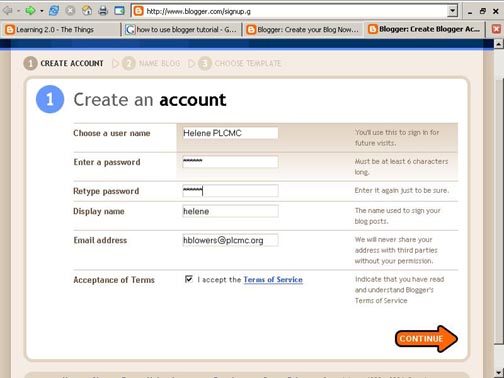
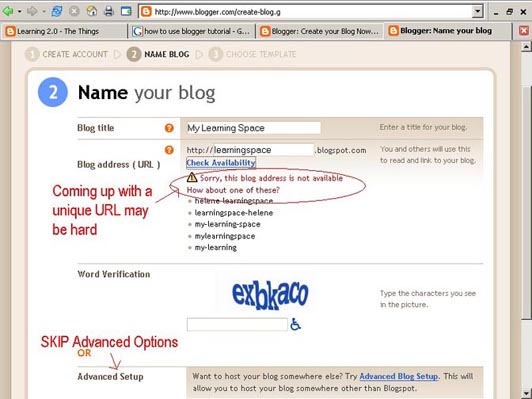
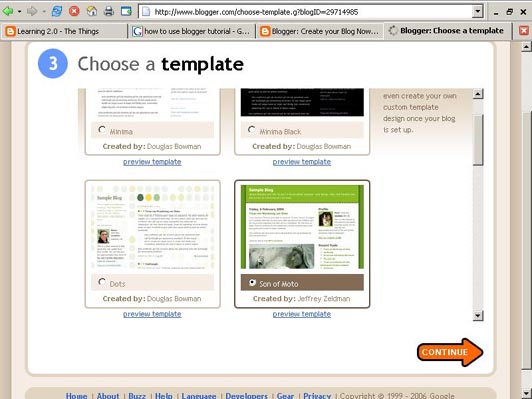
#3 Creating a blog in three easy steps


Now that you’ve done some exploring around this website and understand how this program will work, it’s time to setup your very own personal blog to begin recording your thoughts, discoveries and exercises in. For this program, I recommend that you use Blogger*, a popular free online blog hosting service that is extremely easy to use.

Creating a blog using Blogger takes just three steps:


  1. Create an account (view screenshot)
  2. Name your blog (view screenshot)
  3. Select your template. (view screenshot)

Once you’ve created your blog here are two important things to know:

  • To add posts: The maintenance interface that you will use to add posts, edit or change the step-up your blog is accessed online at http://www.blogger.com/ Be sure to write down your login and password.
  • To view your blog: Your blog address is http://(xxxx).blogspot.com, (xxxx)=the unique identifier you entered in Step 2. Be sure to also write down your blog address.

Find Out More:

OK -- Now, it’s your turn...


Try It Out!
  1. Setup a blog for yourself through Blogger.

  2. Add a post about your thoughts on the program so far.

  3. Have fun!!!!

IMPORTANT NOTE: How you choose to identify yourself on your blog is your choice. You can blog under a screen name, anonymously, or as yourself. However, in order to qualify for the staff incentives, you will need to visit the staff page to submit this exercise as described in exercise #1. Don't forget to add a link to your blog posting. Visit the Recording Progress section (at the bottom of the page) of the 17 Learning Activities page for help finding the permanent link to your blog entries.

* Use of Blogger is only a recommendation. If there is another blog hosting site that you are more comfortable with, please feel free to use it.


Friday, November 14, 2008

#2 Getting Started!

What is Web 2.0?

Congratulations on joining MMSCL 2.0!

Beth Gallaway gave us an introduction to Web 2.0 – now it’s time to experience it firsthand!

Web 2.0 is used to describe the explosion of interactive “second-generation” internet services including social networks, blogs and wikis which rely on the participation and creativity of all users to collaborate and create online communities.

Web 2.0 has removed many of the barriers to participation that existed on the internet. You don’t need to know xml or be a webmaster to have your thoughts, pictures, movies, recipes, and more out there on the internet.

Web 1.0 VS Web 2.0
Webmasters control content
Anyone can add content
Need extensive technical knowledge
Need little technical knowledge
Reading websites
Interacting on websites

Over the next few weeks we’ll be exploring blogs, wikis, rss feeds, tagging and other 2.0 technologies. You'll most likely find that some of these tools are already familiar to you while you've never heard of others. Take a minute to read the About MMSCL 2.0 page to familiarize yourself with the entire program.

To receive credit for this exercise:
Leave a comment below describing your thoughts on Beth Gallaway's presentation and 2.0 in general.

Be sure to visit the staff page to submit this exercise as described in exercise #1. You will need to log your progress after completing each exercise in the MMSCL 2.0 program.

Thursday, November 13, 2008

#1 Sign up for MMSCL 2.0

Now it's time to officially sign up for MMSCL 2.0!

Visit the staff page and click on Staff Contact Information. Search for your last name and click on the link that appears. Click on the edit button on the bottom left of the page (under your picture, if you have one).

Log in using your password. If you have not set up a password yet, leave the field blank and click login. Check your information on this page for accuracy and make any changes as necessary.

Once you are done checking the page, click on the Web 2.0 button on the bottom left. Select #01 Sign up for MMSCL 2.0 from the drop down box. Leave the field below blank (later on we will use this field to paste a link to your blog exercises). Check off the done button and click update.

That's it! You are now signed up for MMSCL 2.0. Congratulations and Good Luck!