The two most popular feed readers are Google Reader and Bloglines.
Subscribing to content is very easy - all feed readers allow you to enter URLs or keywords to search for sites, or when you are at a site that you'd like to follow, just look for the RSS symbol:
Clicking on that symbol (or sometimes just on a link that says "SUBSCRIBE" or "FOLLOW") will allow you to add the feed to your news reader.
Find Out More:
Top 10 Windows RSS Feed Readers and News Aggregators
Wikipedia Entry for Aggregator
Yahoo! explains their many feeds
Try It Out!
- Take a look at MMSCLTeens' Google Reader account to get an idea of how much information you can subscribe to and read.
- Go to http://reader.google.com/
- username = mmsclteens
- password = teens11967
- Create your own Google Reader or Bloglines account. Subscribe to some feeds of interest.
- Here are some local feeds that you can subscribe to:
- Fantastic Mastic Beach: http://masticbeach.blogspot.com/
- Mastastico: http://mastastico.blogspot.com/
- Mastic/Shirley: http://masticshirley.blogspot.com/
- Kenny Bloggins: http://yukeleleblog.blogspot.com/
- Smith Point Neighborhood News: http://smithpointneighborhoodnews.blogspot.com/
- Go back to the blog you created in exercise #3 and create a blog post about something that you discovered while reading your feed reader. Include a link to the item. Be sure to visit the staff page to submit this exercise as described in exercise #1. Don't forget to add a link to your blog posting. Read below for more information.
Recording Progress:
Recording progress on the staff page is as easy as cut-n-paste.
First you'll need to sign up. This will be covered in the directions for activity #1.
For the first two activities, just check off the appropriate check box as discussed in "Sign up for MMSCL 2.0". Once you start recording your discoveries through your own blog (activity #3), you will need to check-off the item and enter the permanent link to the individual blog post that covers the exercise or "thing."
Depending upon the Blogger template that you selected, the "permanent link" for each individual post can be found either through the post’s title or through a link in the posts footer area the contains the date.
To record progress for an individual item on the Staff Page:
- Log in to your blogger.com account that you created in activity #3.
- Click on the permanent link for the individual post.
Example:
Here is where you would find the perma link for this sample blog post: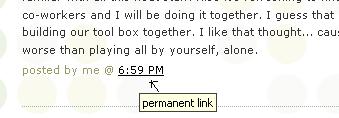
Click on this link to see actual post. - Select the "permanent link" url from the address bar at the top of your browser and right click. Select Copy.
- Follow the instructions from item #1: Sign up for MMSCL 2.0.
- Right click on the address line for the item and select Paste.
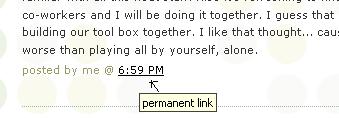
See, it's as easy and copy-n-paste!
Your staff information page should now show a light grey "OK" image. After your activity has been reviewed and approved, the "OK" image will turn purple.


1 comment:
I never knew what that symbol meant on the bottom of all my favorite news sites. Now I know and I think I'm going to continue to use the RSS feed reader.
Post a Comment